Monitor a remote team's work time (with or without screenshots)
A shortlist of catalog tools for tracking a remote team's hours, from activity and screenshot monitoring to timer-only reporting, with a separate section on screenshot capture: plan, interval, retention and who can see the images, as published by each vendor.
Monitoring a remote team usually covers two separate questions: how many hours people work, and what they work on during those hours. Tools differ most on the second. Some record apps, websites, screenshots and GPS location; others only report the timers that employees start themselves. Before choosing, decide how much visibility you actually need, check which plan unlocks each type of data, and confirm who can see the records: managers only, or the employees too. Rules on workplace monitoring differ by country, and the vendors below advise telling staff what is collected. This page lists catalog tools in order of how closely their official pages match remote work-time monitoring. Every price, limit and feature comes from vendor pages checked on 2026-10-20; where a page says nothing, the table says so.
Jibble lists activity, screenshot and GPS monitoring as free for unlimited users; TimeCamp adds approvals and billing on paid per-user plans; Paymo is the timer-only option without screenshots.
Tracks hours, app and website use, periodic screenshots and GPS location on Mac, Windows, Android and iOS; per the vendor, employees can view and delete their own screenshots.
When to pick it: If you want activity, screenshot and location data in one free tool and prefer staff to see the same records.
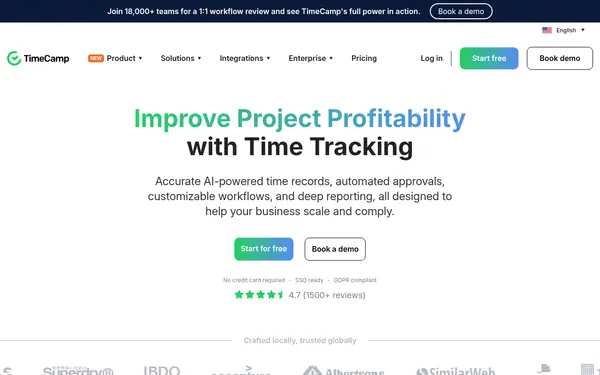
Its desktop app records active apps, websites and documents; paid plans add screenshots, remote work detection and unusual-activity reports. The Free plan covers unlimited users for basic timesheets.
When to pick it: If you also bill clients by the hour and need timesheet approvals, billing rates and monitoring in one place.
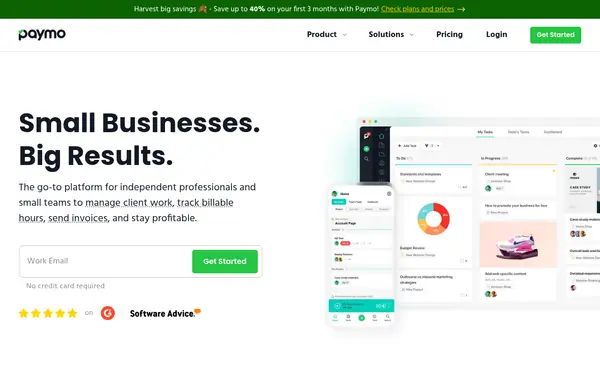
A timer-based option: Active Timers shows each member's running timers, user reports show logged hours, and the vendor's remote-work page argues against screenshots.
When to pick it: If you want team hours next to projects and invoices, without screenshot or location monitoring.
Automatic blurring and lower resolution; employees can view and delete their own screenshots; can be limited to specific groups source
Off by default, admin turns it on; screenshots blurred (feature page); only Administrators and Supervisors see the report, users can't (help center) source
Facts from the vendors' official pages, checked on the date in the last column. Prices are what the vendor published on that date.
Time tracker with screenshots
Two tools on this list capture screenshots. Jibble calls its screenshot tracker free for unlimited users; captures run at intervals you set on Mac and Windows, cover up to three monitors, are blurred, and employees can view and delete their own. TimeCamp takes screenshots through its desktop app for Windows, Mac and Linux, every 10 minutes by default, keeps them 60 days and shows them only to Administrators and Supervisors; the feature sits on its plan priced at $9.99 per user per month billed annually ($13.99 month-to-month). Paymo does not take screenshots. Both vendors say employees must be informed before capture starts.
Open an account and pick the right plan
Sign up for TimeCamp. The vendor offers a 14-day trial with no credit card. Screenshots belong to the plan priced at $9.99 per user per month billed annually, or $13.99 month-to-month, so test them during the trial before paying.
TimeCamp states that the feature is off by default and that an employer who turns it on must inform employees. Explain what is captured, how often and who sees it.
Only the account Administrator can do this: click your avatar, open Account Settings, go to the Modules tab and switch on Screenshots. From then on, captures run on every computer with the desktop app installed.
Find the report under Computer Activities in the left menu. Each entry shows the user, the timestamp and the app or website in use. Filter by a single day and by people; multi-day ranges are not available.
Only the Account Owner can delete screenshots, singly or in bulk. Images are removed automatically after 60 days, and there is no download option other than saving a single image from the browser.
TimeCamp lists screenshots only on its plan priced at $9.99 per user per month billed annually ($13.99 month-to-month); the Free, Starter and Premium plans do not include them. source
TimeCamp's own pages disagree on settings: the help center says screenshot options can't be edited and users can't view their own captures, while the feature page mentions blurring and an interval changed at the administrator's request. source
How to do it
Create the account and invite your team
Sign up for Jibble and invite team members to join your organisation. The vendor describes a guided setup and lists the product as free for unlimited users.
Jibble's own FAQ recommends reviewing local regulations and informing employees about your monitoring practices before you start. Say which data you collect: hours, apps and websites, screenshots or location.
Turn screenshot capture on for the whole organisation or only for chosen groups and departments, and set how long screenshots are stored. Enable geofencing if clock-ins should only happen at approved locations.
Once an employee clocks in, Jibble runs in the background, records app and website use and captures periodic screenshots. Entries made offline are stored on the device and sync when the connection returns.
Tracked hours sync to employee timesheets, where screenshots can also be reviewed. Filter reports by member, project, activity, date or client, then export them, for example as CSV or XLS, for payroll or billing.
Jibble's pricing URL redirected to the homepage on 2026-10-20 and no paid plan prices were visible, so it is unclear from the official pages whether any monitoring feature needs a paid plan. source
Jibble's keystroke and mouse monitoring is announced as coming soon, so it is not available today. source
TimeCamp's monitoring features sit on paid per-user plans: apps and websites tracking from $6.99 per user per month billed annually ($9.99 monthly); screenshots, remote work detection and unusual activity from $9.99 billed annually ($13.99 monthly). The pricing FAQ says no refunds are granted. source
Paymo's Free and Solo plans are limited to 1 user, so a team needs Plus or Pro; timesheet approvals are on Pro only. source
Monitoring rules vary by country and region. Jibble notes that monitoring on personal devices is typically limited to work-related activity during working hours. source
Frequently asked questions
What is employee monitoring software?
Per Jibble's description, it shows managers how working hours are spent by recording time on tasks, desktop activity and physical location. Some tools add screenshots; others, like Paymo, report only timers and logged hours.
Does monitoring software work for remote teams?
Jibble says it tracks time, GPS location and screen activity across devices for remote and hybrid teams. TimeCamp lists remote work detection on its plan priced at $9.99 per user per month billed annually.
Is there free monitoring software for remote employees?
Jibble says its monitoring software is free for unlimited users. TimeCamp's Free plan also allows unlimited users but leaves out apps tracking and screenshots. Paymo's Free plan is limited to 1 user.
Can I track remote hours without screenshots?
Yes. Paymo relies on timers: Active Timers shows each member's running timers, and time reports cover logged hours. In TimeCamp, screenshots and activity tracking are optional and admins can switch them off.
Is there a free time tracker with screenshots?
Jibble's screenshots page describes the feature as free for unlimited users. TimeCamp also has a free plan, but its screenshots start on the plan priced at $9.99 per user per month billed annually.
How often do these tools take screenshots?
TimeCamp captures every 10 minutes by default through its desktop app. Jibble captures at intervals you set; its pages do not state a default interval.
Can employees see their own screenshots?
In Jibble, yes: team members can open their own screenshots and delete them at any time. TimeCamp's help center says only Administrators and Supervisors can open the Screenshots report and users can't view theirs.
Can a phone app take work screenshots?
TimeCamp states that screenshots are not available in its mobile app and need the desktop app. Jibble's screenshot page lists Mac and Windows computers only.
Why are only three tools on this list?
The list includes only AGIPicks catalog tools whose official pages describe tracking a team's work time. Other catalog tools were checked and left out because their pages show no team time or activity tracking.
Suggest an update
Something wrong or missing on this page — a wrong fact, an outdated price, a tool that should be here? Tell us, ideally with a link to the official page. We check every suggestion within 7 days; a suggestion never changes the page by itself.